Options
Go to last post Go to first unread
slitherhence  
#1 Posted : Friday, July 2, 2021 7:56:43 PM(UTC)
slitherhence

Rank: Newbie

Joined: 12/9/2020(UTC)
Posts: 5

Was thanked: 1 time(s) in 1 post(s)

Can someone kinda sorta explain to me what i'm looking at here? The torso material does not have this in it.


Without Shell:


With Shell:


This doesn't happen all the time and this is the worst it's ever been. I've tried moving the character around the scene but it just seems to get worse. Removing the geograft fixes the issue but putting it back on restores the issue. Golden Palace is also being affected. I tried reimporting the character from the scene subset I use to store it, same issue. I'm not exactly an expert on this stuff so any pointers here would be much appreciated.

Edited by user Friday, July 2, 2021 9:13:33 PM(UTC)  | Reason: Not specified

matt  
#2 Posted : Saturday, July 3, 2021 2:06:36 PM(UTC)
matt

Rank: Advanced Member

Joined: 9/15/2012(UTC)
Posts: 623

Thanks: 305 times
Was thanked: 396 time(s) in 255 post(s)

The only time that I've ever seen anything like this has been when the base texture has some kind of displacement mapping. It will fuck with grafts big time, especially when there's a shell involved. You say that it doesn't happen all of the time, so I can assume that you've had good luck with other texture sets? Check the surfaces tab and see if there are any displacement maps loaded, otherwise I have no idea. I'm sure that Meipe will chime in eventually, they always do.


slitherhence  
#3 Posted : Saturday, July 3, 2021 4:54:23 PM(UTC)
slitherhence

Rank: Newbie

Joined: 12/9/2020(UTC)
Posts: 5

Was thanked: 1 time(s) in 1 post(s)

I've discovered a fix with some help from people on other forums. More on that in a minute


I've actually had good luck with this skin material in the past. Here's the exact same character (including all currently hidden elements) in my "studio" scene I use for character design:
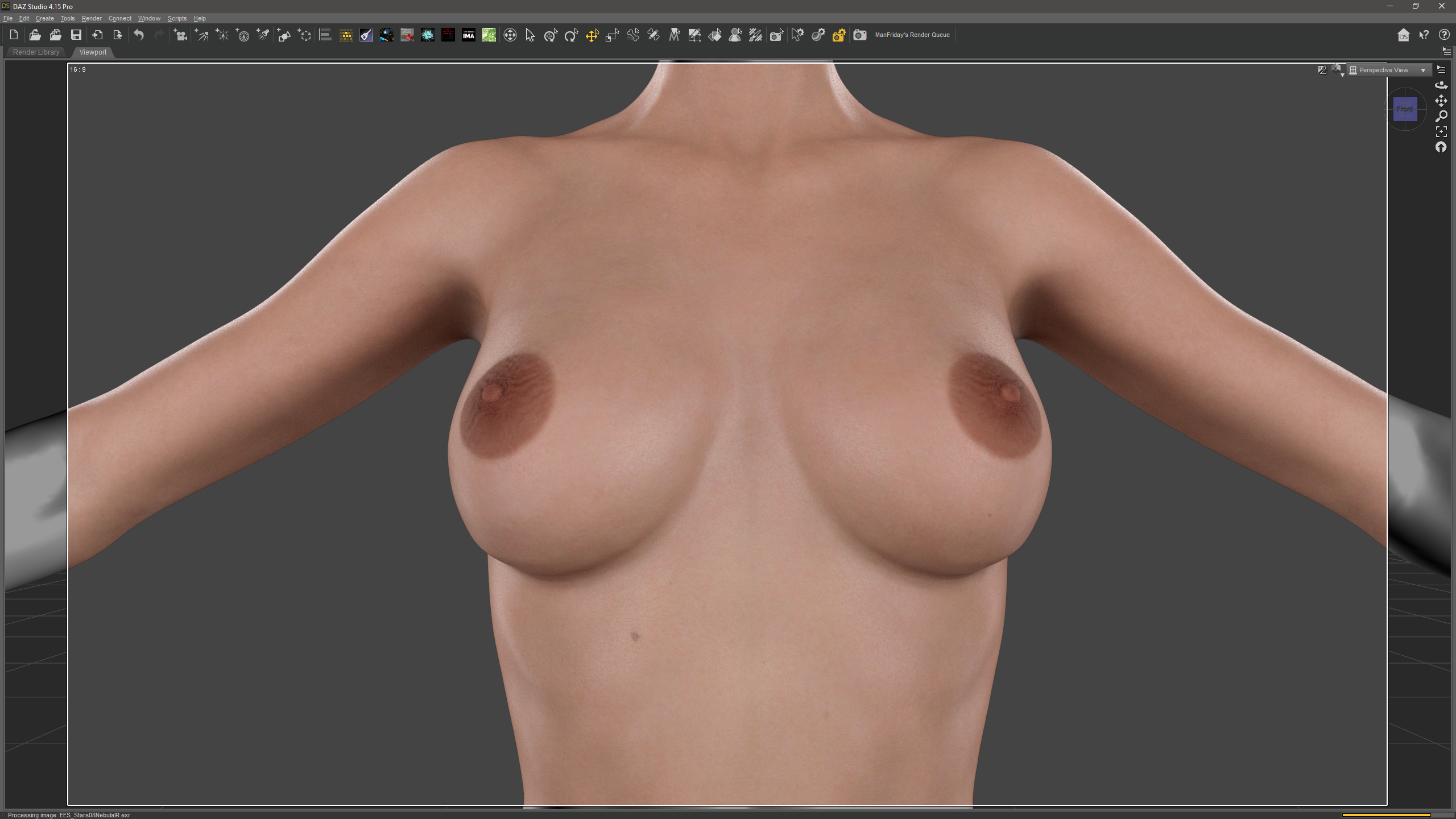


As you can see, no issues.


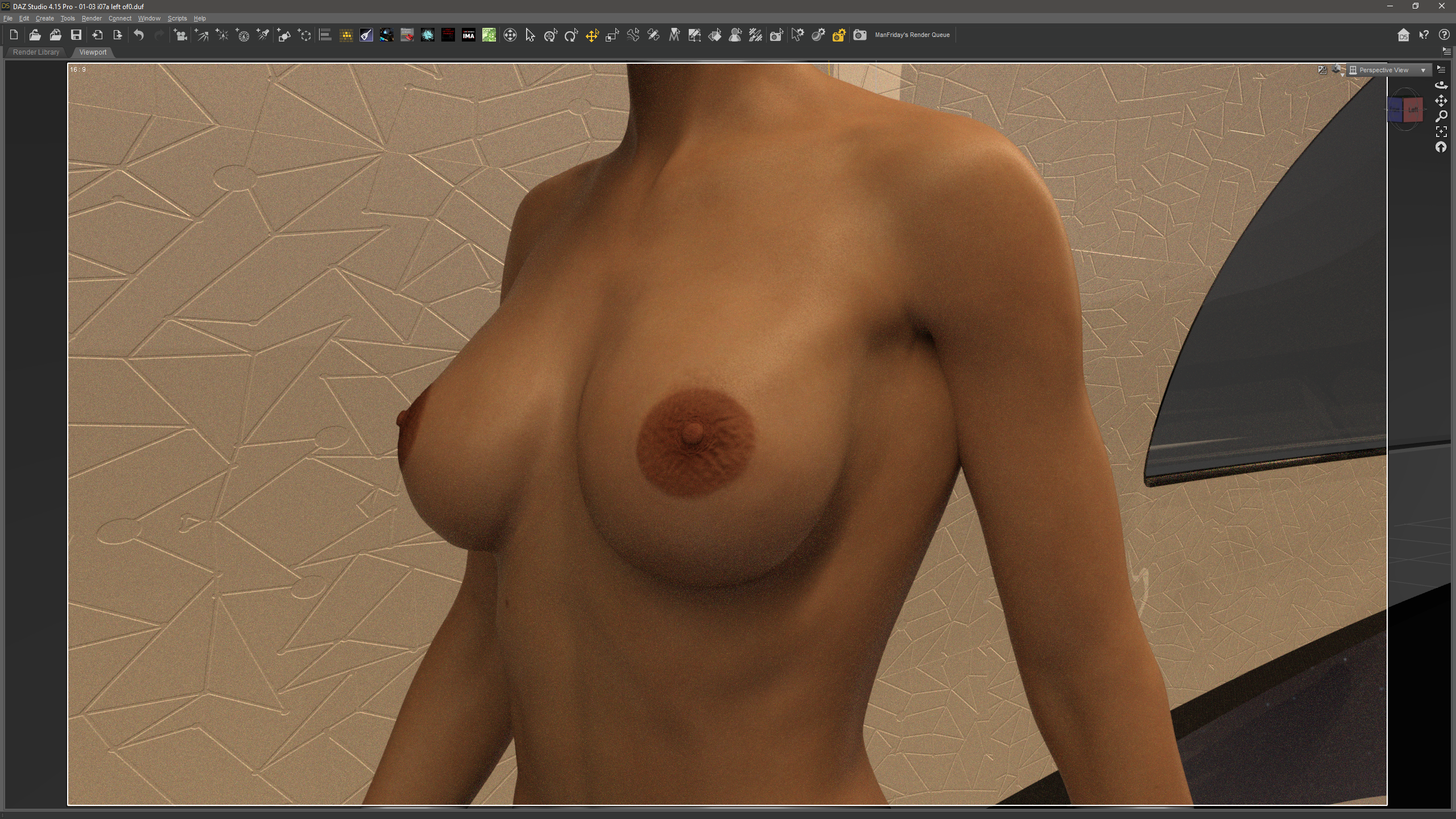
Here's another case of the issue where it's much less severe in the same scene as the OP, but with the character in a different location in the environment:
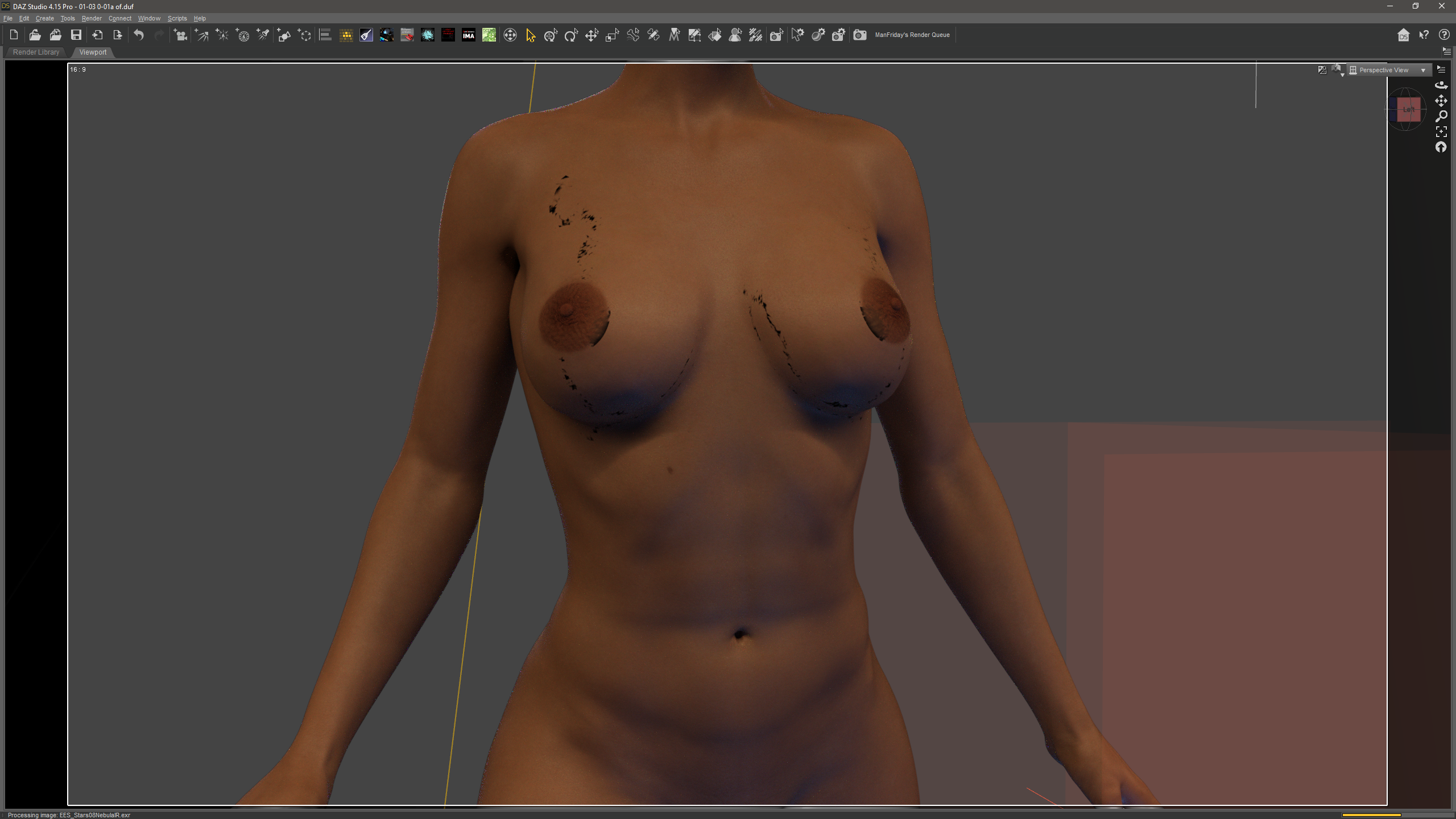


That's what I mean about the issue being inconsistent. It gets better and gets worse and can even clear up entirely... and, untill a few minutes ago, I didn't know why.


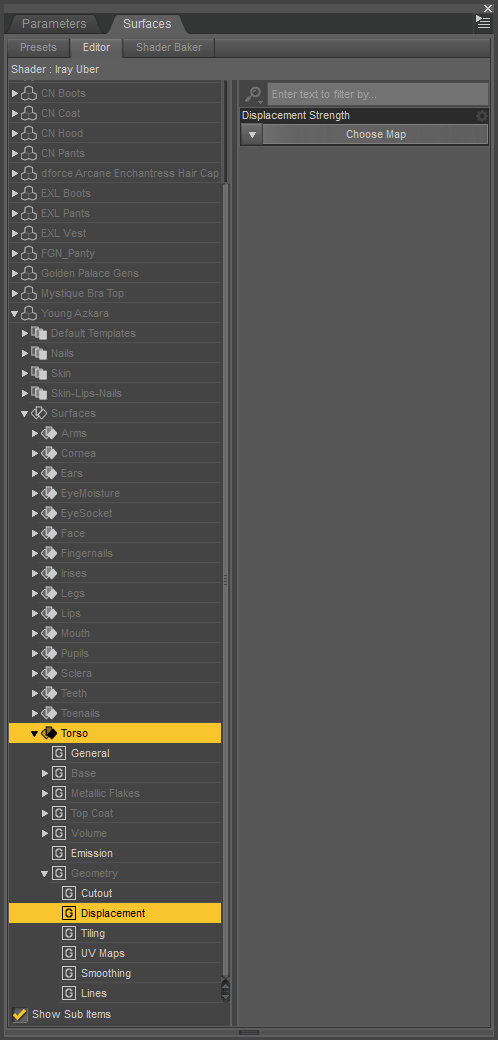
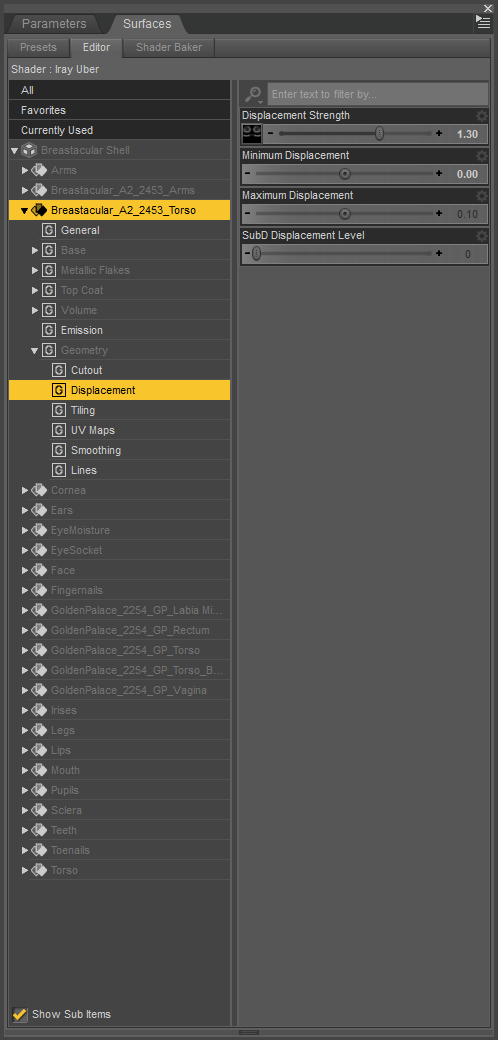
Looking at the displacement setting for the skin material...
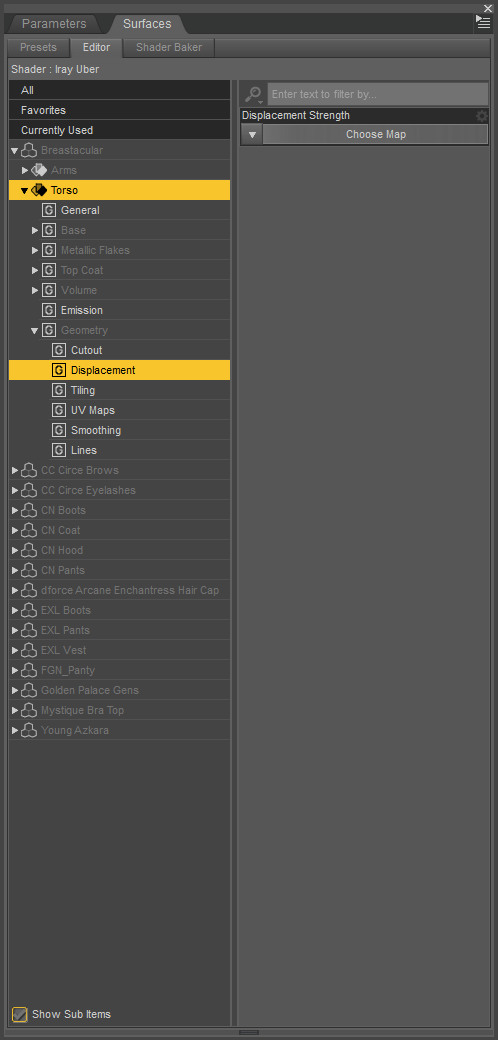


The Fix


So the "fix" is actually just to reposition all elements of the scene to move the character back to coords 0, 0, 0 in the scene. The further the character gets from the center of the scene the more likely geografts are to start having this issue. Even a few hundred cm away from dead center of the scene can cause issues to appear. Why this works is beyond my understanding. I would assume a bug in IRay. Perhaps an overflow in the coordinate math or something. In the scenes in the OP the character was only at -4875.027, 7.0, 1580.581... not what I consider an extreme distance from center. I hesitate to call this a true solution as the solution would be to fix whatever bug in IRay causes this issue (which is obviously out of my hands) or to address the root cause (whatever that would be).
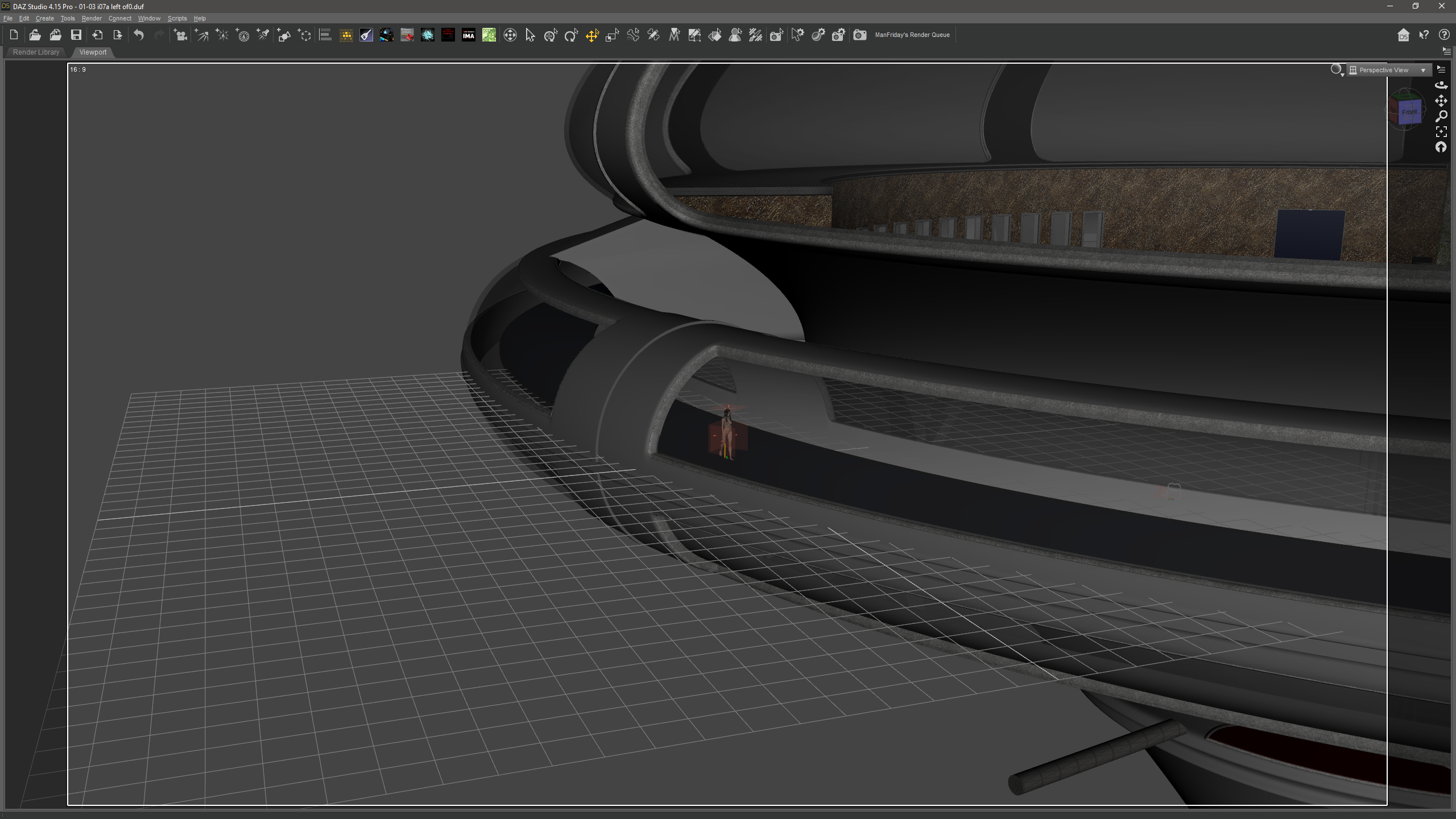


Regardless, thank you for the help. :-)

Edited by user Saturday, July 3, 2021 5:29:45 PM(UTC)  | Reason: Not specified

thanks 1 user thanked slitherhence for this useful post.
Meipe on 7/5/2021(UTC)
matt  
#4 Posted : Saturday, July 3, 2021 8:55:45 PM(UTC)
matt

Rank: Advanced Member

Joined: 9/15/2012(UTC)
Posts: 623

Thanks: 305 times
Was thanked: 396 time(s) in 255 post(s)

I've seen that before, and it's a known issue with Studio and Iray. The further a character or element is from center, the more that you will get render bugs, but I haven't seen it that severe before. 


sumigo  
#5 Posted : Sunday, July 4, 2021 11:29:28 AM(UTC)
sumigo

Rank: Advanced Member

Joined: 12/18/2012(UTC)
Posts: 1,200

Thanks: 226 times
Was thanked: 134 time(s) in 121 post(s)

I had this problem last year in an outdoor scene I worked on, that unfortunately for me I had many pages to render in, but I found ways to work around it.


My eventual fix was to clean it up later in photoshop.


But another thing I noticed about the anomaly, in my case anyway, is it would only happen when as you say they were away from 0, 0, 0, but also when they were facing a certain way, in this case it was facing what I considered west as it was a sunset scene. 


But if I turned the same models, in the same scene and same lighting around and rendered it, no marks on breastacular, or Golden Palace.


SnarltheWerewolf  
#6 Posted : Sunday, July 4, 2021 7:40:01 PM(UTC)
SnarltheWerewolf

Rank: Advanced Member

Joined: 1/16/2016(UTC)
Posts: 332

Thanks: 15 times
Was thanked: 122 time(s) in 77 post(s)
Two things you may want to check:

Check the "Max Path Length" under Render Optimization. Granted the default is -1 for basically unlimited paths. But I have seen black patches if you have the max path length set to something like 2 to 5. Try adjusting it up to at least 10 or so.

Secondly, if there's a shell or some sort of texture overlay that has opacity maps on it, try adjusting the distance of the shell/material from the figure underneath it. I see this a lot with hair props that use opacity maps. Looks fine in preview, go to render and you get black spots or tears, I find adjust the hair slightly away from the head can fix that.
thanks 1 user thanked SnarltheWerewolf for this useful post.
Meipe on 7/5/2021(UTC)
Users browsing this topic
Guest
Forum Jump  
You cannot post new topics in this forum.
You cannot reply to topics in this forum.
You cannot delete your posts in this forum.
You cannot edit your posts in this forum.
You cannot create polls in this forum.
You cannot vote in polls in this forum.

Powered by YAF.NET | YAF.NET © 2003-2026, Yet Another Forum.NET
This page was generated in 0.129 seconds.

Notification

Icon
Error